 how-to
How to Print Wall Art Without Pixelation: 2026 Guide
Table of Contents
- Why Wall Art Prints Turn Out Pixelated (And How to Spot It Early)
- The Best Resolution for Printing Wall Art at Every Size
- How to Resize an Image for Printing Without Losing Sharpness
- When to Upscale an Image for a Large Print (And When Not To)
- Printable Wall Art File Formats: What to Export and Why
- How to Diagnose a Blurry File Before You Send It to Print
- Print Provider Upload Previews and File Requirements
- Frequently Asked Questions
Last Updated: October 21, 2026
Why Wall Art Prints Turn Out Pixelated (And How to Spot It Early)
A pixelated print wall art is almost never the printer's fault.
Here is the core idea. A digital image is a grid of tiny squares called pixels. When you stretch that grid over a large print, each square grows.
Image resolution is the amount of detail in a file, measured in pixels. Print resolution is how densely those pixels sit on paper, measured in PPI (pixels per inch) or DPI (dots per inch).
So how do you spot trouble early? Two quick checks:
- Open the file and zoom to 100%. If edges look blocky there, they will look worse on paper.
- Compare the file's pixel width against your intended print width. A low ratio means trouble.
The Best Resolution for Printing Wall Art at Every Size
The best resolution for printing wall art is 300 PPI at the final print size for small and medium prints, dropping to around 150 PPI for very large pieces viewed from a distance.
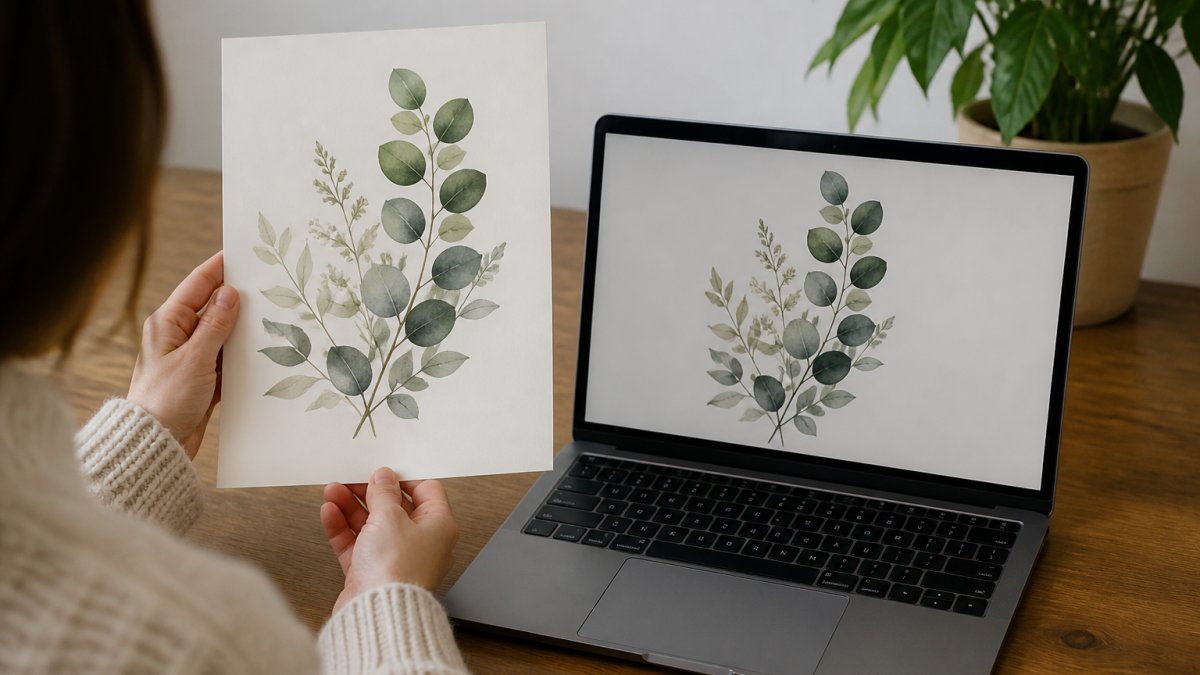
But 300 is not a universal law. Richard Photo Lab suggests 150 to 300 DPI depending on viewing distance and image detail, and large-format printing shops routinely accept lower densities for wall-sized pieces because nobody stands 30cm from a two-metre canvas.
A Pixel Chart by Print Size and Viewing Distance
Use this as a starting point. Multiply inches by your target PPI to get the pixel dimensions you need.
| Print size | Viewing distance | Target PPI | Minimum pixels |
|---|---|---|---|
| 5 x 7 in | Close, handheld | 300 | 1500 x 2100 |
| 8 x 10 in | Close, framed | 300 | 2400 x 3000 |
| 11 x 14 in | Arm's length | 240-300 | 2640 x 3360 |
| 16 x 20 in | Across a room | 200-240 | 3200 x 4000 |
| 24 x 36 in | Sofa distance | 150-200 | 3600 x 5400 |
| 40 x 60 in | Across a large room | 100-150 | 4000 x 6000 |
Metric readers: 8 x 10 inches is roughly 20 x 25 cm, and 24 x 36 inches is about 61 x 91 cm.
How to Resize an Image for Printing Without Losing Sharpness
Resizing well comes down to one rule: shrink freely, enlarge carefully. Reducing an image throws pixels away and stays sharp. Enlarging forces software to invent pixels, and invented detail is always a guess.
The confusion most people hit is that "resize" means two different things in an image editor, and only one of them changes the file.
- Changing the resolution (PPI) without resampling keeps the pixel grid identical and only changes the number the printer reads. A 3000 x 4000 pixel file is still 3000 x 4000 pixels whether you label it 300 PPI or 150 PPI. This is safe and reversible.
- Resampling changes the actual pixel count. Shrinking discards pixels; enlarging adds them. This is where quality is won or lost.
A practical workflow for how to resize an image for printing:
- Open the file in an editor that shows pixel dimensions, not just a canvas size. In Photoshop, that is Image > Image Size; in Affinity Photo, Document > Resize Document; in GIMP, Image > Scale Image.
- Uncheck "Resample" first and set the resolution to your target PPI. Read the resulting print size. This tells you whether the file already has enough pixels before you touch anything.
- If the print size is too small, re-check "Resample" and note the shortfall in pixels. That number decides whether you crop, upscale, or choose a smaller print.
- Crop out anything you do not need. Cropping removes the need to stretch, and it is always sharper than upscaling.
- Export at the final pixel dimensions your printer asks for, not at a canvas size you hope they will interpret correctly.
Which Resampling Method to Choose
When you do resample, the algorithm matters. Most editors offer a menu of interpolation options, and they behave differently:
- Nearest Neighbor keeps hard edges and is only appropriate for pixel art or index-color graphics. On photos it produces jagged stair-stepping.
- Bilinear is fast and soft. It is fine for small reductions but blurs fine detail on enlargement.
- Bicubic is the general-purpose default. Bicubic Sharper is tuned for reductions; Bicubic Smoother is tuned for enlargements.
A common pattern among print preparers is to use Bicubic Sharper or Lanczos when reducing, and Bicubic Smoother when enlarging modestly. None of these create detail; they only decide how gracefully the software guesses.
Resizing vs. Resampling: A Quick Sanity Check
Before you export, confirm three numbers match your print order: the pixel width, the pixel height, and the PPI the provider requested. If the pixel dimensions are right but the PPI label is wrong, the printer may still scale the file and soften it. If the PPI label is right but the pixel dimensions are short, the file is genuinely under-resolved and no label will fix it.
When to Upscale an Image for a Large Print (And When Not To)
Upscaling is worth it when the shortfall is modest and the viewing distance is generous. A file that is 20% under target for a canvas viewed from across a room will usually look fine.
There are three real upscaling routes, and they fail in different ways. Knowing which one you are using tells you what to inspect before you order.
Route 1: Resampling in an Image Editor
This is the standard bicubic or Lanczos enlargement covered in the resizing section. It is predictable, fast, and honest about its limits: it interpolates between existing pixels and cannot invent detail. Use it when the shortfall is small (roughly 10-25% under target) and the artwork is photographic or softly textured. Inspect the result at 100% zoom on the busiest area, leaves, hair, fabric folds, and look for a smeared, "melted" quality along edges.
Route 2: Vectorization
Vectorization traces a raster image into paths and is the only route that genuinely adds resolution, because vectors scale infinitely. It works well for flat-color logos, simple line art, and high-contrast graphics with clean edges. It works badly for photographs, gradients, and textured paintings, where the tracer produces blotchy color bands and wobbly outlines. If your botanical print is a clean line drawing, vectorizing and re-exporting as PDF or SVG can be the difference between a crisp A2 and a soft one.
Route 3: AI Upscalers
Modern AI upscalers do a better job than older tools on photographs, but they invent texture. On botanical line art, that can mean wobbly stems and smeared leaves. On a photograph, it can mean plastic-looking skin or hallucinated detail in foliage. The practical test is to upscale a small crop first, compare it side by side with the original at 100%, and look for three failure signs: repeating patterns where there should be randomness, edges that look painted rather than photographed, and text or fine lines that have changed shape.
When to Skip Upscaling Entirely
Skip upscaling when:
- The image is already soft or out of focus. Enlarging makes blur bigger, not sharper.
- The subject has fine detail, like line art or small text.
- You are printing small and viewing close.
The honest answer: upscale a little, accept the limit, and choose a smaller print size when the file cannot carry the size you want. A 16 x 20 inch print from a marginal file almost always looks better than a 24 x 36 inch print from the same file.
Printable Wall Art File Formats: What to Export and Why
The print wall art format matters less than people think, but it does matter. Choose based on whether the artwork is line-based or photographic.
| Format | Best for | Watch out for |
|---|---|---|
| Vector or mixed artwork, print-ready files | Flatten layers before sending | |
| PNG | Line art, crisp edges, transparency | Large file sizes |
| JPEG | Photos and textured art | Compression softens fine detail |
| TIFF | Archival photo printing | Huge files, slow uploads |
For printable wall art file formats, our default advice is PDF for anything with sharp lines and JPEG at maximum quality for photographic pieces. Set your colour profile to CMYK if your printer asks for it, and sRGB if they do not.
How to Diagnose a Blurry File Before You Send It to Print
Run this checklist before every order. It takes two minutes and saves a reprint.
- Check pixel dimensions against the chart above for your target size.
- Zoom to 100% and inspect the busiest area of the image.
- Confirm the file is the original, not a screenshot or a saved chat attachment.
If the file fails the first check, no amount of sharpening will rescue it. Sharpening adds contrast at edges; it cannot add pixels.
Print Provider Upload Previews and File Requirements
Most print providers run an automatic check when you upload. Treat that warning as useful, not annoying. If the preview flags your file as low-resolution, believe it.
What to confirm with any provider before ordering:
- Required PPI at the ordered size
- Preferred file format and colour profile
- Whether they add bleed or crop
That last point matters. A file that looks marginal on glossy paper can look perfectly good on canvas, because the weave breaks up fine detail.
If a print still comes back pixelated despite passing every check, the cause is usually a preview image being printed instead of the full file, or a provider scaling the artwork up on their end.
Printing wall art without pixelation is really a file-discipline habit: check pixels, match them to size, and pick the right medium. At BriarpatchPaper, our botanical printable wall art is designed with this in mind, delivered as instant digital downloads in print-ready formats, with botanical and nature-inspired designs that hold up at frame size.
Frequently Asked Questions
What resolution do I need to print wall art without pixelation?
For most wall art, aim for 300 PPI at the final print size. Adobe uses 300 ppi as its standard print benchmark, noting that a 4 x 6-inch print needs 1200 x 1800 pixels. For larger pieces viewed from a distance, 150 PPI can be enough. Richard Photo Lab recommends 150 to 300 DPI depending on viewing distance and detail. The key is matching pixel dimensions to the exact size you plan to print, not just the file's DPI tag.
Can I upscale an image for a large print without it becoming blurry?
You can upscale an image for a large print, but results depend on how much you enlarge and what tool you use. A modest increase, around 1.5 to 2x, often holds up well with good resampling software. Beyond that, detail gets softer and pixelation becomes visible up close. Vector artwork scales cleanly at any size, so if you have a vector source, use it. For raster files, test a small crop at 100% zoom before committing to a full-size print.
What is the best file format for printable wall art?
PDF is the safest choice for printable wall art because it embeds fonts and holds resolution without compression artifacts. PNG works well for images with sharp edges or transparency. JPEG is fine for photographic artwork at high quality settings, but repeated saves degrade it. Avoid sending screenshots or social media downloads. For color accuracy, export in CMYK if your printer asks for it, and keep a high-resolution master file in RGB for future resizing.
How do I know if an image is large enough to print before ordering?
Check the pixel dimensions, not just the DPI number. Multiply your target print width in inches by 300 to get the minimum pixel width for crisp results. A 16 x 20-inch print needs roughly 4800 x 6000 pixels at 300 PPI. Open the file at 100% zoom on screen; if edges look soft or blocky there, they will look worse in print. Many print providers also show an upload preview that flags low-resolution files before you pay.