 how-to
7 Steps to Print Digital Wall Art Clearly
Last Updated: October 26, 2026
Quick Summary
To print digital wall art clearly, check that your file's pixel dimensions meet 300 PPI for the intended print size, then print at actual size with "fit to page" turned off. Match the paper setting to your paper, use the highest quality mode, and run one test copy on plain paper first.
- A 4 x 6-inch print at 300 PPI needs 1,200 x 1,800 pixels.
- A 3,000 x 4,000-pixel file holds enough data for a sharp 10 x 13-inch print at 300 PPI.
- Large-format prints tolerate lower PPI because viewers stand farther back.
- The "fit to page" checkbox is the most common cause of soft home prints.
- Matte photo paper around 200-250 gsm suits botanical prints and fine line art.
Table of Contents
- Why Your Digital Wall Art Prints Look Blurry
- Digital Art Print Resolution: The Numbers That Decide Sharpness
- How to Print Digital Art at Home Without Losing Detail
- The Best Paper for Printable Wall Art
- Where to Print Digital Download Art: Home vs Print Service
- Matching Colors From Screen to Print
- Common Printing Mistakes to Avoid
- Choosing Your Botanical Wall Art and Printing It
- Frequently Asked Questions
Why Your Digital Wall Art Prints Look Blurry
Most blurry print digital wall art traces back to one cause: the file was too small for the size it was printed. A print needs enough pixels to fill its physical dimensions, and when the pixel count falls short, the printer stretches what it has. Edges soften, fine lines break up, and the whole piece looks cheap.
Here is the rule that decides everything: print resolution is the number of pixels in your file divided across the print's physical size. Adobe's printing guidance puts the standard at 300 PPI, and a 4 × 6-inch print at that resolution needs 1,200 × 1,800 pixels (Adobe's printer's cheat sheet for printing art).
If you want the full walkthrough on avoiding pixelation, our guide on how to print wall art without pixelation goes deeper.
Digital Art Print Resolution: The Numbers That Decide Sharpness
Resolution is the relationship between pixels and inches, not a fixed quality score. The same file can be sharp on a greeting card and blurry on a poster.
Two numbers matter:
- Pixel dimensions: the actual width and height of the file in pixels
- PPI (pixels per inch): how densely those pixels sit on the printed page
A file with 3,000 × 4,000 pixels holds enough data for a sharp 10 × 13-inch print at 300 PPI. The same file stretched to 24 × 32 inches drops to roughly 125 PPI, and the softness shows.
How to Check Pixel Dimensions Before You Print
Open the file and look at its properties. On Windows, right-click the file and choose Properties, then Details. On Mac, select the file and press Command + I. Both show the pixel width and height.
Then do the math. Divide the pixel width by your intended print width in inches. If the result lands near 300, you are safe. Below 150, expect visible softness.
Resolution Thresholds by Print Size and Viewing Distance
Viewing distance changes the target. A print viewed from arm's length needs more density than one hung above a sofa.
| Print Size | Target PPI | Minimum Pixels Needed | Best For |
|---|---|---|---|
| 5 × 7 in | 300 | 1500 × 2100 | Desk frames, gallery walls |
| 8 × 10 in | 300 | 2400 × 3000 | Standard wall frames |
| 11 × 14 in | 300 | 3300 × 4200 | Hallway art |
| 16 × 20 in | 200-300 | 3200 × 4000 | Large statement pieces |
| 24 × 36 in | 150-200 | 3600 × 5400 | Posters viewed from across a room |
Large-format printing tolerates lower PPI because viewers stand farther back (adobe.com). A 24 × 36-inch piece at 150 PPI often looks fine on a wall. The same file at 150 PPI on a 5 × 7-inch frame looks soft.
How to Print Digital Art at Home Without Losing Detail
Home printing works well when the file, the paper, and the printer settings agree with each other. Get one wrong and the result suffers.
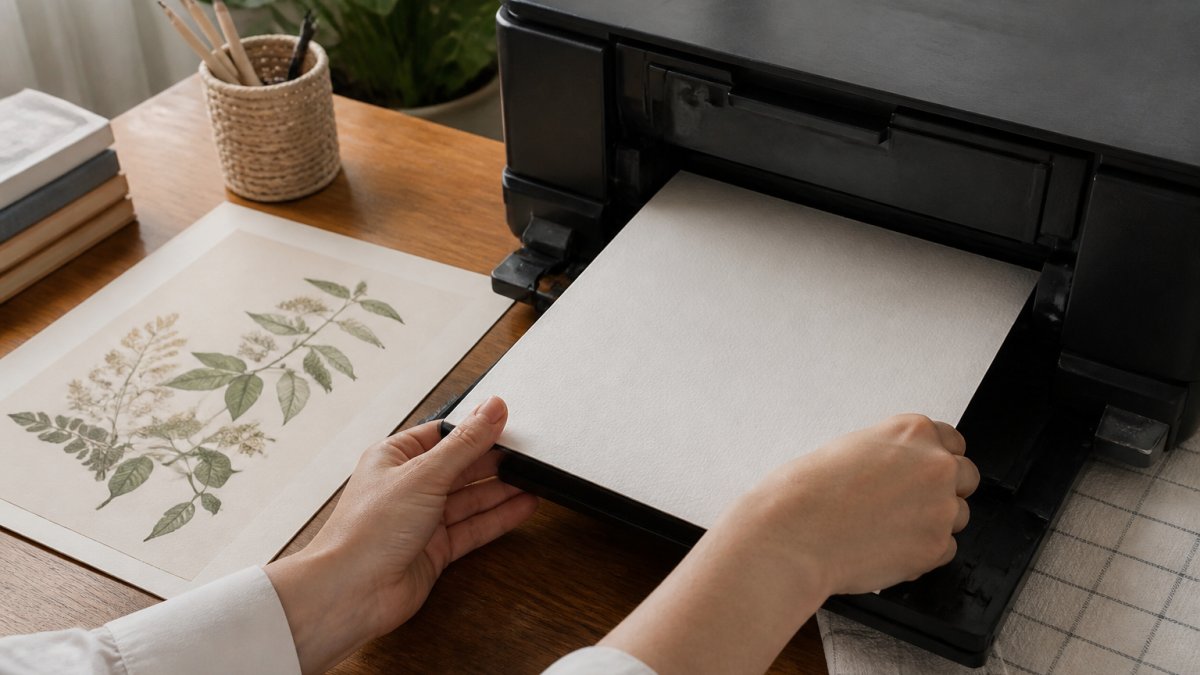
Start with these steps:
- Check the file first. Confirm pixel dimensions meet the table above.
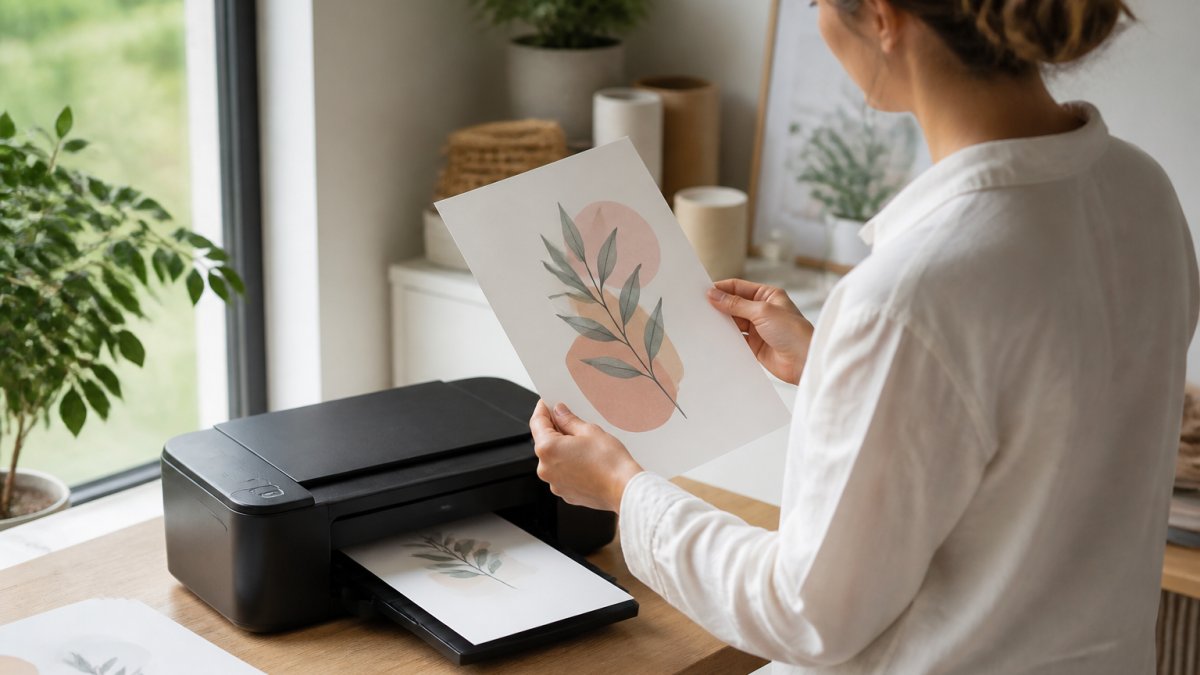
- Set the print size to actual size. Never tick "fit to page" or "scale to fit." Both stretch the image.
- Match the paper setting to your paper. Photo paper, matte, and plain paper each need a different ink load.
- Choose the highest quality mode. Draft mode saves ink and ruins linework.
- Print one test copy on plain paper. Check sharpness before using your good stock.
Printer Settings That Protect Linework and Texture
Linework and fine texture are the first things to fail. Thin botanical stems and delicate leaf veins disappear when the printer over-inks or scales the image.
- Turn off borderless printing unless your file includes bleed
- Select the exact paper type from the printer's list
- Use the "high quality" or "best photo" setting
- Disable any automatic image enhancement
- Let the print dry flat before framing
Watch out: the "fit to page" checkbox is the single most common cause of soft home prints. It silently rescales your file, and the sharpness goes with it.
The Best Paper for Printable Wall Art
Paper choice decides the finish as much as the file does.
Matte photo paper is the workhorse for botanical prints, line art, and anything with fine detail. Its non-reflective surface keeps blacks deep and lines crisp, and it hides fingerprints better than gloss.
Cotton rag or fine art paper is textured, heavyweight (often 300 gsm or more), and the closest match to gallery prints.
Satin or semi-gloss sits between matte and gloss. It has a slight sheen that enriches color saturation without the mirror-like glare of full gloss.
Canvas works for large pieces and gives a painterly, gallery-wrap look, but it softens fine linework by design, the weave texture interrupts thin lines.
Plain copy paper is fine for a test print only. Never for the final piece. It's too thin, too bright-white, and absorbs ink unevenly.
For a calm, botanical look, matte heavyweight paper suits the style best. It keeps detail crisp and avoids the reflective glare that cheap gloss paper throws under a lamp. If you're printing through a service, ask what weight and brand they use, the difference between a 180 gsm house brand and a 250 gsm branded stock is visible in the hand and on the wall.
Where to Print Digital Download Art: Home vs Print Service
Where to print digital download art comes down to size, quantity, and how much control you want. Both routes work; they suit different jobs.
| Factor | Home Printer | Print Service |
|---|---|---|
| Best for | Small sizes, single copies | Large sizes, multiples |
| Paper choice | Limited to what you buy | Wide selection |
| Cost per print | Low after setup | Varies by size and paper |
| Color accuracy | Depends on your printer | Usually calibrated |
| Turnaround | Immediate | A few days |
A home inkjet handles 5 × 7 and 8 × 10 prints well. Once you move past 11 × 14 inches, a professional print service usually wins on both sharpness and paper range. Many print shops also let you upload a test file first.
Matching Colors From Screen to Print
Screens glow. Paper reflects.
The core issue is color space. Your monitor displays images in RGB (red, green, blue), an additive model where combining light creates color (Describing colours: introduction).
A second factor is the embedded color profile. Every image file can carry an ICC profile that tells the printer how to interpret its colors.
Soft proofing lets you preview the conversion on your monitor. In Photoshop, choose View > Proof Setup > Custom, select your print service's ICC profile, and enable Proof Colors.
A test print is still the only real proof. Print a small copy on your chosen paper and compare it to the screen under daylight, not a warm lamp. The lamp will lie to you. Look specifically at blues and deep greens, they shift most between screen and paper because CMYK inks struggle to reproduce those wavelengths. If the test print looks acceptable under daylight, it will look fine on the wall.
One more habit worth building: calibrate your monitor before you judge any color match. A monitor that runs too warm or too cool will make every print look wrong.
Common Printing Mistakes to Avoid
A handful of mistakes cause most bad prints. Each one is easy to fix before you hit print.
- Printing a small file large. Check pixel dimensions against the size table first.
- Leaving "fit to page" on. Always print at actual size.
- Skipping the test print. One plain-paper copy saves expensive paper.
- Using the wrong paper setting. The printer needs to know what it is printing on.
- Forgetting bleed. Artwork meant to run to the edge needs extra margin.
- Ignoring trim. Print shops cut to size, so keep key detail away from the edges.
What most guides miss is that resizing and upscaling rarely rescue a weak file. Upscaling adds pixels but not real detail. Start with a high-resolution file and the rest gets easy.
Choosing Your Botanical Wall Art and Printing It
The best print workflow starts with a file built for printing. Choose artwork that ships at high resolution and the technical steps become simple.
At BriarpatchPaper, our shop features a variety of editable Canva templates for invitations, as well as hyperlinked digital planners, journals, and printable wall art. Our printable wall art is designed as instant digital downloads with botanical, nature-inspired designs.
Here is the short version of everything above:
- Check pixel dimensions against your print size
- Print at actual size, never "fit to page"
- Match the paper setting to your paper
- Test on plain paper first
- Choose matte heavyweight stock for botanical linework
Print digital wall art clearly is not about expensive equipment. It is about matching the file to the size, then letting the printer do its job without interference.
Frequently Asked Questions
What resolution should digital wall art be for printing?
Adobe describes 300 PPI as the standard resolution for a printed image, and a 4 x 6-inch print at that resolution needs 1,200 x 1,800 pixels. For larger wall art, multiply the print size in inches by 300 to get the minimum pixel dimensions. A 16 x 20-inch print needs roughly 4,800 x 6,000 pixels to stay sharp at close viewing distance.
How do I print digital art without it looking blurry?
Check the pixel dimensions of your file before printing anything. If the file is smaller than your intended print size requires, either choose a smaller print or upscale the image carefully. Set your printer to its highest quality mode, use the correct paper type setting, and run one test print on plain paper before committing to your good stock. These steps catch most blur problems before they cost you paper.
Should I print digital wall art at home or use a print shop?
Home printing gives you control and quick turnaround for small sizes up to roughly 8 x 10 inches. Print services handle large-format printing, offer paper stocks most home printers cannot take, and produce consistent color. For a first large piece or a matched set, a print service usually wins on quality. For quick replacements and small frames, a home printer works well once you know your settings.
Why do the colors in my digital art print differently from my screen?
Screens emit light while paper reflects it, so prints always look slightly duller than a backlit display. Your monitor may also be set brighter than print standards assume. Soft-proof in your editing software, ask your print service for a test print, and accept that a small shift is normal. If you print at home, check that your paper profile matches the paper you loaded.
Blurry prints usually come from a file that was never built for the size you wanted. Get that right and the rest follows. BriarpatchPaper offers instant digital downloads with botanical, nature-inspired designs, editable Canva templates, and files made to print cleanly at home or through a service. Get started with BriarpatchPaper and hang art that looks sharp from across the room.