 how-to
How to Customize Canva Party Invitations (2026 Guide)
Last Updated: October 23, 2026
Quick Summary
You customize Canva party invitations by opening an editable template, then adding photos through the Uploads tab, editing text boxes with your event details, and swapping colors and graphics from the Elements tab. Download the finished design as PDF Print for a print shop or PNG for digital sending.
- Decide your invitation size before you design, since switching sizes later can push text and photos out of place.
- Every kids' invitation needs six details, including the child's name and age plus an RSVP deadline.
- Build a three-color motif with a base, accent, and detail color, and stick to it.
- Use PDF Print for a print shop and PDF Standard or JPG for home printing.
- Print one test copy first, because a single test print costs less than reprinting thirty cards.
Table of Contents
- Before You Start: What You Need to Customize Canva Party Invitations
- Choosing Canva Party Invitation Templates That Fit Your Event
- Step 1: How to Add Photos to a Canva Invitation
- Step 2: Editing Text, Fonts, and Essential Event Details
- Step 3: Adjusting Colors, Graphics, and Design Elements to Match Your Party Theme
- Step 4: How to Download a Canva Invitation for Printing
- Sharing Digital Invitations and Editing Across Devices
- Common Mistakes to Avoid When Customizing Invitations
- Frequently Asked Questions
Before You Start: What You Need to Customize Canva Party Invitations
You can customize Canva party invitations in about fifteen minutes once you know where the controls live. At BriarpatchPaper, we build editable Canva templates for parents and hosts. This workflow assumes no design background, no paid plan, and no prior experience.
Here is what you need before you open a template:
- A free Canva account. Sign up with an email address or Google login.
- Your event details. Date, time, venue, and RSVP contact written down first.
- Photos, if you want them. Save them to your device or cloud drive first.
Canva's editor is browser-based, so your work saves automatically as you go.
Choosing Canva Party Invitation Templates That Fit Your Event
Start with the search bar, not the browse page. Typing a specific phrase like "botanical birthday invitation" or "minimal baby shower" returns a tighter set of Canva party invitation templates than scrolling through categories. According to Canva's invitation design guide, templates are built to be edited, so you can change images and fonts freely once you open one.
Searching by Theme, Color, Layout, and Style
Use the filters on the left of the search results to narrow by style, theme, and color. Try this order:
- Theme first. "Dinosaur," "garden party," "space."
- Color second. Match your tableware or venue palette.
- Layout third. Portrait suits classic cards; square suits social posts.
- Style last. Minimal, bold, whimsical, or hand-drawn.
A common mistake is choosing a template with beautiful typography and no room for your details. Check the text boxes before you commit; if the layout has three lines where you need six, keep looking.
Step 1: How to Add Photos to a Canva Invitation
Adding a photo to a Canva invitation takes four steps: upload it, drag it onto the canvas, resize it, and layer it behind or in front of other elements. Canva's own party invitation page confirms users can upload their own photos, images, and artwork into a template Canva party invitation creator.
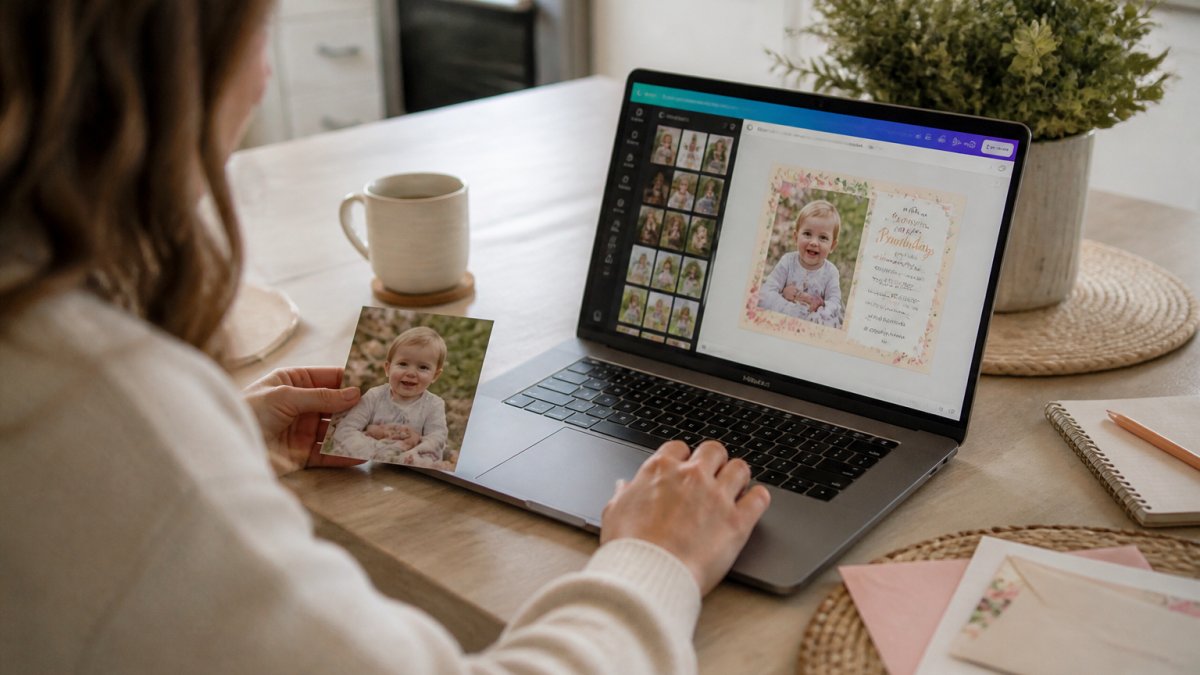
The full sequence:
- Click Uploads in the left sidebar.
- Choose Upload files and select your photo.
- Drag the image onto the invitation.
For a clean look, use one photo, not four. A single portrait or wide venue shot reads better than a collage on a small card.
Step 2: Editing Text, Fonts, and Essential Event Details
Click any text box and type. The hard part is knowing what to write, so here is our checklist.
Wording Checklist for Customizable Birthday Invitations for Kids
Every kids' invitation needs six details, in roughly this order:
- Child's name and age
- Party date and start-to-finish time
- Venue name and full address
Keep the wording short. "Join us to celebrate Mia turning six" does more work than three sentences of preamble. For phrasing options, our guide to customizable birthday invitations for kids walks through full wording examples.
On fonts: pick two, one for the name, one for the details. A script headline with a clean sans-serif body stays readable at print size.
Step 3: Adjusting Colors, Graphics, and Design Elements to Match Your Party Theme
Color is where templates stop looking like templates. Click any element, then open the color swatch to swap it. Canva shows your document's existing colors first, which keeps the palette consistent.
Build a three-color motif and stick to it:
- Base: the background, usually a soft neutral.
- Accent: the theme color, used on the name and border.
- Detail: a small pop for icons or dividers.
What most guides miss: restraint. Three decorative elements feel intentional; ten feel cluttered. If unsure, remove one.
A Concrete Palette Workflow (Not Just 'Pick Three Colors')
Most guides tell you to choose a color motif but skip the mechanism. Here is the sequence we use when a host has a theme but no palette:
- Pull colors from a real object. Upload a photo of the venue, tableware, or birthday outfit to Canva and use the color picker to sample exact hex values, faster and more accurate than eyeballing.
- Assign roles, not just colors. Decide which hex is the base (largest area), the accent (name and headline), and the detail (icons, dividers). A palette fails when two colors compete for the same role.
- Apply with the 'select all' trick. Click one text box, hold Shift and click the others you want to recolor, then change the swatch once. This keeps every headline the same accent color.
- Lock the palette. Write the three hex codes in a note so you can re-enter them later instead of guessing.
Contrast and Readability: The Check Most Hosts Skip
A palette can look lovely on a laptop and fail on a printed card or phone screen. Before you download, run two checks:
- Text-on-background contrast. Light gray script on white is a common template default and a common readability problem. Swap the text to a darker shade of the same accent rather than pure black, which can look harsh against pastels.
- Phone-width preview. Zoom the canvas to roughly phone width. If the venue address disappears into the background pattern, add a subtle solid shape behind the text block or lighten the pattern.
Graphics: Where to Find Them and How to Keep Them Consistent
Use the Elements tab for decorative graphics, but treat it like a curated shelf, not a shopping spree.
Near text, use Canva's alignment guides (the pink lines) to keep spacing even, and nudge with the arrow keys instead of dragging, which overshoots on a trackpad.
One more restraint rule: if a decorative element does not touch the theme, the palette, or the event details, it is probably clutter.
Step 4: How to Download a Canva Invitation for Printing
Downloading a Canva invitation for printing means choosing the right file type, and this is where most print problems start. Use PDF Print for a professional print shop and PDF Standard or JPG for home printing.
- Click Share in the top right.
- Choose Download.
- Select PDF Print for a print shop.
- Tick Crop marks and bleed if your printer asks.
- Click Download and save the file.
Home Print Setup and Troubleshooting
Most home print issues come down to three settings. Work through these before you blame the file:
| Problem | Likely Cause | Fix |
|---|---|---|
| Card prints with white edges | "Fit to page" is on | Set scaling to 100% or "Actual size" |
| Colors look dull | Printer set to draft mode | Switch to best quality, matte paper |
| Design is cut off at the edge | No bleed added | Re-download with bleed and crop marks |
| Text looks blurry | Wrong file type | Use PDF Print, not JPG |
Print one copy first. Always. A single test print costs less than reprinting thirty cards.
For paper, heavier matte card stock holds color better than standard copy paper and feels closer to a store-bought invitation. Check your printer's maximum paper weight before buying a pack.
Sharing Digital Invitations and Editing Across Devices
A digital invitation is the same design saved as an image or PDF and sent by message, email, or group chat. From the same Share menu, choose Download and pick PNG for messaging apps or PDF Standard for email.
Most guests open invitations on a phone, so check two things:
- Text size. Zoom to phone width and confirm the date and address are readable without pinching.
- File size. A PNG under a few megabytes sends quickly; a heavy PDF may not.
Canva's editor also runs in a mobile browser and in the app, so you can fix a typo from your phone. Edits sync to your account, so the version on your laptop updates too.
Choosing the Right Format for How You'll Send It
The format decision is really a delivery decision. Match the file to the channel:
- Group chat or SMS: PNG. It previews inline, needs no app, and survives compression better than a PDF on most phones.
- Email to a guest list: PDF Standard. It preserves layout and prints cleanly if a guest wants a paper copy.
- Social post or story: PNG sized to the platform's aspect ratio. A square design crops badly in a vertical story, so duplicate and resize before exporting.
A common pattern is to export two files from the same design: a PNG for the group chat and a PDF for anyone who asks to print. It takes one extra download and prevents the "can you resend it, it's blurry" reply.
Link vs. Attachment: A Trade-off Worth Knowing
Canva can share a view-only link, which is convenient for a large guest list because you are not managing file sizes. The trade-off: a link depends on the guest having access and on the design staying shared. For a one-time event, an attachment or downloaded image is more reliable because it lives on the guest's phone. Use a link when you expect to update details (a venue change, a rain date); use a downloaded file when details are final.
Testing Readability on a Phone Before You Send
Most guests will see your invitation on a screen roughly the width of a hand. Test it the way they will:
- Download the PNG and open it in your phone's photos app, not the Canva editor.
- View it at normal size without zooming. Can you read the date, time, and venue in one glance?
- Check the RSVP line. If the phone number or email wraps awkwardly, shorten the label ("RSVP to Sam" instead of "Please RSVP to Samantha by...").
- Send a test to one person and ask them to open it on their phone.
If the text fails the phone test, the fix is usually in the design: increase the body text size a point or two, shorten the wording, or add a solid shape behind the details block.
Editing Across Devices Without Breaking the Design
Canva syncs edits to your account, so a typo fixed on your phone appears on your laptop. The risk is editing the same design on two devices at once, which can create conflicting versions. A simple workflow avoids it:
- Design on the larger screen. Layout and alignment are easier on a laptop or desktop.
- Proof on the phone. Use the phone for the readability check, not major layout changes.
- Duplicate before big edits. For a different guest group (a kids' party vs. an adults' dinner), duplicate the master first so the approved design stays intact.
Common Mistakes to Avoid When Customizing Invitations
The same four mistakes show up again and again. Each one is easy to prevent.
- Editing before choosing a size. Changing dimensions mid-design scatters your layout.
- Too many fonts. Two is plenty; three starts to look messy.
- Forgetting the RSVP deadline. Guests need a date, not just a name.
One more: leaving placeholder text in. Search the design for "Name" and "Date" before you download, because a card that says "Your Text Here" is a card you have to reprint.
A calm, organized invitation does not need to be complicated. Pick a template, add one photo, keep the wording short, and print a test copy.
Frequently Asked Questions
Can you add your own photos to a Canva party invitation?
Yes. In the Canva editor, open the Uploads panel on the left, then drag your photo onto the canvas or drop it into a frame. You can crop, reposition, and adjust brightness directly in the editor. Use a high-resolution photo (at least 300 dpi at print size) so it stays sharp. If you are working from a BriarpatchPaper template, the photo frames are already sized for you, which saves a lot of resizing guesswork.
How do you download or share a Canva invitation?
For printing, choose Share then Download and select PDF Print for the sharpest result, or PNG for a flat image. For digital sharing, PDF Standard or JPG keeps file sizes small enough for email and messaging apps. You can also copy a view-only link and send it directly. If you plan to print at home, download the PDF Print version and check the bleed and crop marks before you send it to your printer.
Can you print a Canva invitation at home?
Yes, and it works well if you set it up correctly. Download the PDF Print file, then in your printer settings choose Actual Size rather than Fit to Page, and set the paper to the same size as your design. Cardstock around 200-250 gsm gives invitations a sturdier feel than standard paper. Print one test copy first to check margins and color before running the full batch.
Are Canva party invitation templates free to use?
Canva offers a large library of free templates, and many are fully editable at no cost. Some templates and individual elements are marked Pro and require a subscription to download without a watermark. When you buy an editable template from a shop like BriarpatchPaper, the design itself is yours to customize in Canva, and you edit it with a free Canva account. Check each listing for what is included before you buy.
Customizing invitations should feel like the easy part of party planning, not another task on the list. If you would rather start from a design that already fits your theme, BriarpatchPaper offers editable Canva templates for invitations, plus hyperlinked digital planners and botanical printable wall art for the rest of your planning. Every download is instant, and every template opens straight in Canva. Browse the BriarpatchPaper shop and start with a design that already feels like yours.