 listicle
7 Canva Templates for Professional Event Invitations
Last Updated: November 1, 2026
Quick Summary
Canva templates for professional event invitations give you a pre-designed layout you personalize in a browser, with no software to install. Open a template, swap the text, adjust the colors, and export. Match the template to the occasion and check editability before you commit.
- Corporate designs need clean type, a defined palette, and logo space.
- Digital invitations should use square or vertical formats with large text.
- Confirm print resolution, bleed, and margins before printing formal invitations.
- Limit customization to two colors and two fonts to keep designs polished.
- Every invitation needs an RSVP deadline, the most commonly omitted detail.
Table of Contents
- Why Canva Templates Work for Professional Event Invitations
- How to Choose Professional Event Invitation Templates
- Corporate and Business Event Designs: An Editable Corporate Event Invitation Canva Template
- Digital Event Invitation Templates for Email and Social Sharing
- Printable Event Invitation Templates for Formal Occasions
- Customizing Color, Typography, and Layout Without Design Experience
- What to Write on a Professional Invitation: Copy and Required Details
- Licensing, Accessibility, and Costs to Know Before You Download
- Start With a Template That Fits the Occasion
- Frequently Asked Questions
Why Canva Templates Work for Professional Event Invitations
Professional event invitations live or die on presentation.
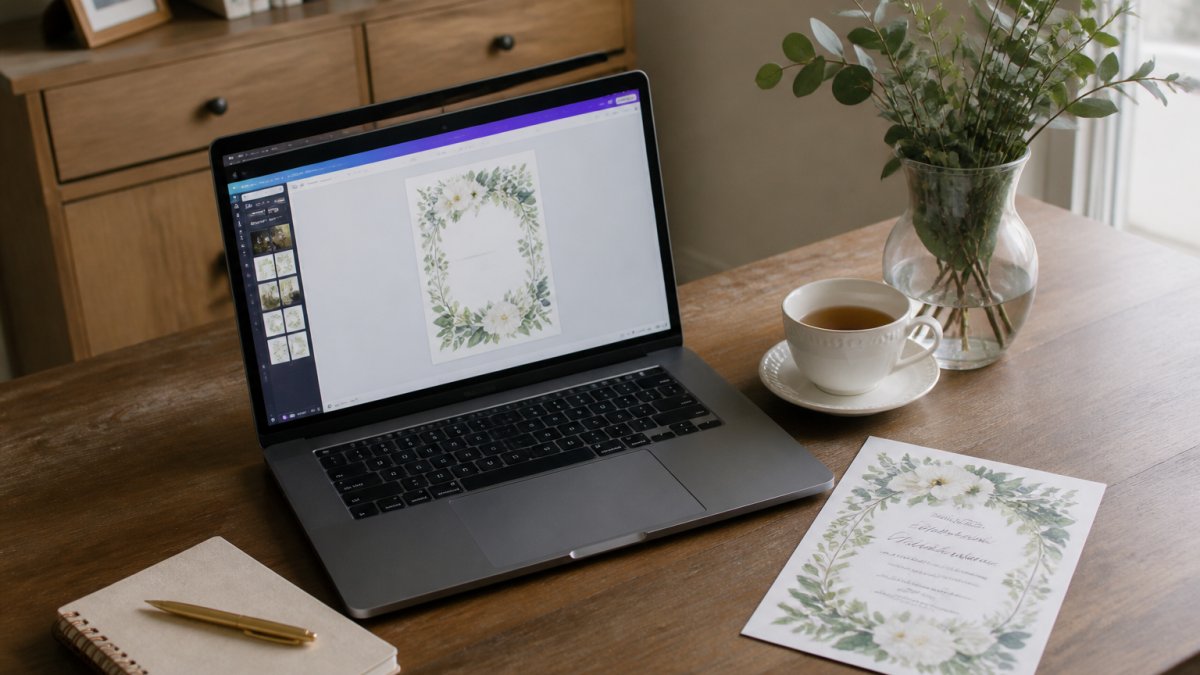
Canva's invitation template library gives you professionally designed layouts you can personalize in a browser, with no software to install. Open a template, swap the text, adjust the colors, and export.
The catch most guides skip: a beautiful template can still be the wrong template. Print resolution, editability, and licensing decide whether it works in practice.
How to Choose Professional Event Invitation Templates
Choosing a template starts with two questions: what occasion is this, and how will the invitation reach guests? Answer both before you browse, because a design built for a printed card rarely works as an email graphic, and vice versa.
Match the Template to the Occasion
Occasion sets the visual rules. A corporate event invitation needs restraint: clean type, a defined color palette, logo space. A wedding invitation can carry script fonts and ornamentation. A child's birthday invitation can be playful and bright. Pick the category first, then judge designs inside it. Canva's company event invitation templates are a useful reference point for the corporate end of that spectrum.
Check Editability Before You Commit
Editability means every element you need to change, text, colors, images, and layout, is actually unlocked in the template. Some designs lock background graphics or use fonts that require a paid plan. If you are new to Canva, this beginner's walkthrough of editing Canva templates shows exactly what to click.
Two questions decide the template before you browse: the occasion and how the invitation reaches guests.
| Decision | What to check | Why it matters |
|---|---|---|
| Occasion | Corporate needs restraint; weddings can carry script and ornamentation | Occasion sets the visual rules |
| Format | Printed card versus email graphic | A print design rarely works as an email graphic |
| Editability | Text, colors, images, and layout are unlocked | Some designs lock background graphics or need a paid plan |
| Fonts | Template fonts available on your plan | Paid-plan fonts block editing |
Corporate and Business Event Designs: An Editable Corporate Event Invitation Canva Template
For business gatherings, the invitation is brand collateral. It should look like it came from the same organization as the website and the email signature.
An editable corporate event invitation Canva template gives you that structure without a designer. A conference invitation needs to carry more information than a networking mixer card, and a fundraiser has different tone requirements than a product launch.
Conference and Summit Invitations
Conferences need invitations that double as save-the-dates and logistics documents. Look for templates with a clear header for the event name and year, a defined block for date and venue, and space for a registration URL or QR code. Choose a strong grid with minimal ornamentation; the invitation will likely be viewed on a phone between sessions.
Networking Event and Mixer Invitations
Networking events succeed on atmosphere, so the invitation should feel social and uncluttered. Templates with a single strong image, a bold event name, and generous white space work best. Keep the copy short: event name, date, time, venue, and a clear RSVP link. A defined area for a sponsor logo or partner mark is useful if the event is co-hosted.
Product Launch and Brand Event Invitations
Launch invitations are marketing pieces, so the template should leave room for a product image or brand graphic. Choose a layout with a large image placeholder and a clean type hierarchy that puts the event name and date above the product visual. Avoid busy backgrounds that compete with the product shot. If the launch is press-facing, include a line for media contact or a press RSVP address.
Fundraiser and Gala Invitations
Fundraisers carry more copy than other corporate events: ticket levels, sponsorship notes, dress code, and sometimes a program outline. Choose a template with a clear information block below the main design, so the invitation reads as elegant at first glance but still holds the details. Classic typography and a restrained palette signal seriousness. Leave space for a donation URL or QR code, and confirm a clean area for a sponsor logo row if you have multiple backers.
Business Celebration and Milestone Invitations
Anniversary parties, office openings, and award ceremonies sit between corporate and social. Templates can carry a bit more warmth: a subtle pattern, a softer palette, or a celebratory graphic. Keep the type clean and the details prominent. If the event includes awards or a program, choose a layout with room for a short agenda line.
Two Practical Checks for Any Corporate Design
- Logo placement: confirm the template has a clean zone for your mark, not a decorative area you have to cover.
- Text density: corporate invitations carry more information, so choose a layout with room for an agenda line or a dress code note.
Digital Event Invitation Templates for Email and Social Sharing
Digital invitations win on speed and reach. Canva's email invitation templates are built for this format, sized and laid out for a screen rather than a press.
A digital event invitation template is a design formatted for on-screen viewing and sharing, typically exported as an image, PDF, or video. The format changes the design rules:
- Size for the screen. Square or vertical formats work in email and social feeds. A wide print layout shrinks into illegibility.
- Keep text large. Guests read on phones. If the venue address needs squinting, it's too small.
- Include a clear next step. Add the RSVP link or contact in the design itself, not just the email body.
For virtual events and webinars, a video or animated invitation can lift response, and Canva's guide to digital and printed invitations covers when that format earns the extra effort.
Printable Event Invitation Templates for Formal Occasions
Formal occasions still call for paper.
The one non-negotiable is resolution. A design made for screens can look soft or pixelated in print. Canva's guidance on printing invitations at home or through Canva Print walks through both routes.
For weddings and formal dinners, choose layouts with generous margins and classic typography. Test one copy on your actual paper stock before printing the full run.
Customizing Color, Typography, and Layout Without Design Experience
Customization is where a template becomes yours. The goal isn't to redesign it; it's to make three deliberate changes and leave the rest alone. Most amateur-looking invitations come from changing too much, not too little.
Work in this order:
- Color palette. Pick two colors: one dominant, one accent. Match them to your brand or the event's mood. Use the template's color swatches rather than eyedropping random shades.
- Typography. Keep the template's font pairing. Change the words, not the fonts, unless you have a brand typeface. Two fonts maximum: one for headings, one for body.
- Layout. Adjust spacing and alignment, don't rebuild the grid. If text overflows, shorten the copy before you shrink the font.
For a step-by-step walkthrough of changing colors, fonts, and layout, this guide to customizing Canva party invitations covers the mechanics in detail. The same controls apply to professional designs.
What to Write on a Professional Invitation: Copy and Required Details
Invitation copy fails in two directions: too sparse, so guests can't plan, or too crowded, so nothing stands out. The fix is a fixed checklist of required details, written tightly.
Every professional invitation should carry:
- Host or organization name, stated clearly at the top
- Event name and purpose, in one line
- Date and time, including the day of the week
Write the event name and date first, then fit everything else around them. Keep sentences short.
Watch out: omitting the RSVP deadline is the most common invitation mistake. Without it, guests delay, and you lose the headcount you need for catering and seating.
Licensing, Accessibility, and Costs to Know Before You Download
Two details decide whether a template is safe to use and who can read it. Both get skipped, and both matter for professional events.
Template Licensing and Commercial Use
Canva templates come with different license terms depending on whether they are free or paid, and whether they include premium assets. Before you download, check three things:
- Commercial use: If the invitation promotes a business, confirm the license allows commercial use. Some free templates restrict use to personal projects.
- Modification rights: Most templates allow you to edit text, colors, and images, but some lock certain elements or require a paid plan to export without watermarks.
- Distribution: If you plan to share the template with a co-host or client, check whether the license permits redistribution. In most cases, you can share the finished invitation, not the editable template file.
Keep a record of what you bought and the license terms. If you are designing for a client, confirm the license covers that use.
Accessibility Standards for Professional Invitations
An invitation nobody can read is a failed invitation. Accessibility applies to the design of the invitation itself and the path guests take to respond.
- Contrast: Use strong contrast between text and background. Light gray type on white may look elegant on a desktop screen but disappears on a phone in daylight.
- Type size: Keep body text at a readable size. For digital invitations, test on a phone; if you have to zoom, it is too small.
- Inclusive language: Use language that works for all guests. Avoid assumptions about plus-ones or dress codes that may exclude. State accessibility details such as step-free access or dietary options if relevant.
Budget and Production Costs
Template pricing varies by source and license, and print costs depend on quantity, paper, and delivery. Check the BriarpatchPaper website for current prices or a quote. Here is a framework for budgeting:
- Template cost: Free templates may carry restrictions or watermarks; paid templates may include broader commercial use and premium assets. Check the current listing for exact figures.
- Printing: Home printing is cost-effective for small runs but limited by paper quality and printer capability. Professional printing costs more per unit but offers better paper stock and finish. Request a proof before a full run.
- Delivery: Digital delivery is essentially free after design; printed invitations add postage and handling. For large guest lists, digital may be the only practical option.
Start With a Template That Fits the Occasion
The template is the easy part. The work is matching it to the occasion, editing only what needs editing, and getting the details right before anything goes to print or inbox.
BriarpatchPaper offers editable Canva templates for invitations, with botanical, nature-inspired designs and instant digital downloads. Our hyperlinked digital planners are also available.
Browse BriarpatchPaper's editable Canva invitation templates to find a design for your next event.
Frequently Asked Questions
How do I make a professional event invitation in Canva?
Start in Canva's invitation template library and filter by occasion, such as company event or wedding. Pick a design with the layout you want, then replace the placeholder text with your event details: host name, date and time, venue, dress code and RSVP instructions. Swap the color palette to match your brand or theme, and keep typography to two fonts. Preview the finished design at full size before you download it as a PDF for print or a PNG for digital sharing.
Are Canva event invitation templates editable?
Yes. Canva templates are built as editable designs, so you can change text, colors, fonts, images and layout without design software. Some elements, such as certain premium graphics or fonts, may require a paid Canva plan, so check each template's elements before you commit. Editable Canva files, like those from BriarpatchPaper, can be customized in your own Canva account.
What should a professional event invitation include?
Every professional event invitation needs the host or organization name, the event title, the date and time, the venue with a full address, and a clear RSVP instruction with a deadline and contact method. Add the dress code if there is one, plus parking, accessibility notes or a map link for larger venues. For corporate events, include a registration link or QR code. Keep the copy short so the design stays readable at both print and screen sizes.
What size should a digital event invitation be?
Digital event invitation templates usually work best at 1080 x 1080 pixels for social posts or 1080 x 1920 pixels for stories and mobile sharing. For email, a horizontal format around 1200 x 628 pixels displays cleanly in most inboxes. Canva lets you resize a design after you finish it, so you can start from one template and export versions for email, Instagram and a printable PDF without rebuilding the layout.
Can I print invitations designed in Canva?
Yes. Printable event invitation templates export as print-ready PDFs, which you can print at home on cardstock or take to a local print shop. Standard invitation sizes are 5 x 7 inches or A5, and Canva's export settings include bleed and crop marks for professional printing. Order a single proof first to check color and paper weight before printing the full run, especially if you are matching a brand palette.
Ready to design yours? Browse the collection, pick a template that matches your occasion, and have a finished invitation in hand before the day is out.