 listicle
Yaayplanners Alternatives for Digital Planning
Last Updated: October 31, 2026
Quick Summary
The best Yaayplanners alternatives for digital planning are hyperlinked PDF planners like Cyberry by KDigitalStudio and BriarpatchPaper planners, dedicated planning apps like GoodNotes, Notability, CollaNote, Zinnia and Artful Agenda, or flexible workspaces like Notion, TickTick and Todoist. Match the tool to how you plan: handwriting points to a PDF planner, typed lists point to an app.
- A PDF planner is a file you write on, while a planning app is software you operate.
- Test every hyperlink in your own note-taking app before buying a planner file.
- Start with one week and daily pages only, then add a layer each week.
- PDF planners don't sync calendars or send reminders on their own.
- BriarpatchPaper offers hyperlinked GoodNotes planners as instant downloads.
Table of Contents
- Why Digital Planners Look for Alternatives to Yaayplanners
- PDF Planners vs Planning Apps: What the Difference Means for You
- How the Main Digital Planning Options Compare
- Where to Find Digital Planner Templates That Fit Your Device
- How to Start Digital Planning Without Abandoning It in a Week
- Choosing a Yaayplanners Alternative That Matches How You Plan
- Browse Botanical Digital Planners at BriarpatchPaper
- Frequently Asked Questions
Why Digital Planners Look for Alternatives to Yaayplanners
If you've searched for yaayplanners alternatives for digital planning, you're probably not chasing novelty. You're chasing a planner you'll actually open on a Tuesday morning when the week has already gone sideways.
A common pattern is that someone buys a feature-heavy planner, uses it for a short while, and it becomes another unused file in a tablet folder. The problem usually isn't discipline. It's fit.
Below, we break down how the main options actually differ, what to check before you download anything, and how to pick something you'll keep using past the first week.
PDF Planners vs Planning Apps: What the Difference Means for You
A PDF planner is a file you write on. A planning app is software you operate. That distinction drives cost, compatibility, handwriting feel, and whether your notes survive a device switch.
A PDF planner is a fixed-layout, usually hyperlinked document you open in a note-taking app like GoodNotes, Notability, Noteshelf, or CollaNote and write on with a stylus.
A planning app is built for scheduling and task management. It syncs across devices, handles reminders, and updates in real time, but rarely gives you the tactile, page-turning feel some people need to stay consistent.
If you want the deeper trade-offs, our comparison of digital planner vs paper planner pros covers the format question from the paper side too.
How the Main Digital Planning Options Compare
Three broad categories cover almost everything on the market, but labels won't tell you which planner to open on Monday. Compare any candidate on these six concrete features and the decision gets much easier.
The six features that decide whether a planner fits
**1. For a deeper walkthrough, see how to use hyperlinked digital planners on your tablet.
2. Dated versus undated layouts. Dated planners come with the calendar filled in, so you can't start mid-year without wasted pages.
3. Customization. Some PDF planners are fixed designs. Others ship as editable templates (for example, Canva templates) that you can recolor or rearrange before export.
4. App compatibility. A PDF planner is only as good as the app that opens it.
5. Handwriting versus typing. PDF planners are built for stylus input. Planning apps and workspace tools are built for typing and tapping.
6. Sync, reminders, and offline use. A PDF planner file does not sync your calendar or push reminders on its own. A planning app does.
What the three categories actually deliver
| Option type | Examples | Navigation | Dated/undated | Customization | App compatibility | Sync & reminders |
|---|---|---|---|---|---|---|
| Hyperlinked PDF planner | Cyberry by KDigitalStudio, BriarpatchPaper planners | Clickable tabs and internal links | Usually both offered | Fixed design or editable template | Opened in GoodNotes, Notability, Noteshelf, CollaNote | None built in; pair with a calendar app |
| Dedicated planning app | GoodNotes, Notability, CollaNote, Zinnia, Artful Agenda | App menus and in-app navigation | App-managed calendars | Themes and templates inside the app | Native to the app's supported devices | Built-in syncing and reminders (varies by app) |
| Flexible workspace | Notion, TickTick, Todoist | You build the structure | You set the dates | Fully configurable | Web, desktop, and mobile apps | Built-in, often with collaboration |
You still need a compatible note-taking app, and the handwriting experience depends on that app's tools.
GoodNotes, Notability, CollaNote, and Zinnia all appear in planner-app roundups as options for handwritten calendars, digital agendas, and note-taking.
What most guides miss: these tools aren't planners in the traditional sense. They're workspaces. You build the planner, which is either the appeal or the dealbreaker.
| Option type | Examples | Best for | Main trade-off |
|---|---|---|---|
| Hyperlinked PDF planner | Cyberry, BriarpatchPaper planners | Handwriting and page-based thinking | Needs a note-taking app |
| Dedicated planning app | GoodNotes, Notability, CollaNote, Zinnia, Artful Agenda | Calendar-first scheduling | Subscription or app lock-in |
| Flexible workspace | Notion, TickTick, Todoist | Custom systems and collaboration | You build the structure |
Where to Find Digital Planner Templates That Fit Your Device
Start with your device, not the design. A beautiful planner that stutters on your tablet will lose to a plain one that opens instantly. Compatibility decides everything downstream: which app can open the file, whether hyperlinks work, and whether handwriting feels usable.
Digital planner templates are pre-designed planner layouts you download and reuse, either as PDF files for a note-taking app or as editable templates inside a workspace tool. Match your device to the format and app that will actually run it.
Device and app compatibility at a glance
| Device | Common note-taking apps for PDF planners | Workspace tools | Practical notes |
|---|---|---|---|
| iPad | GoodNotes, Notability, Noteshelf, CollaNote | Notion, TickTick, Todoist (via apps) | Stylus input is strongest here; GoodNotes is often highlighted for Apple Pencil use |
| Android tablet | Noteshelf, CollaNote, and other Android note apps | Notion, TickTick, Todoist | Confirm the planner file opens and hyperlinks work in your specific app |
| Phone | Note apps with PDF support (varies widely) | Notion, TickTick, Todoist | Screen size makes handwriting planners awkward; typed apps fit better |
| Desktop | PDF readers and some note apps | Notion, TickTick, Todoist (web and desktop) | Best for building or editing templates, not for stylus planning |
This matrix is a starting point, not a guarantee. App availability and behavior change, so verify the current compatibility on the app's own listing before you buy a planner file.
The pre-purchase checklist
Work through this before you commit:
- Confirm which note-taking apps your tablet supports, and whether the planner is GoodNotes-compatible, Noteshelf-compatible, or Notability-compatible
- Check whether the file is a PDF, a Notion template, or a Canva template, since each needs different software
- Test one page on your actual device before committing to a full planner
- Confirm whether hyperlinks work in your chosen app, not just in the demo
- Check whether you need offline access, and whether the app supports it
- Decide if you need cross-device syncing between tablet and phone
- Note whether a free tier exists so you can trial the workflow first
Where to actually find templates
Templates come from three main sources: independent designers who sell hyperlinked PDF planners directly (often as instant downloads), template marketplaces and creator shops, and workspace tools that publish free templates. The trade-off is consistency versus choice: a single designer's shop offers a coherent style and predictable file behavior; a marketplace offers more variety but more variance in quality and compatibility.
If you'd rather start from a curated set than assemble your own, our guide to digital planner templates walks through matching a template to your device and needs.
How to Start Digital Planning Without Abandoning It in a Week
The fastest way to quit digital planning is to migrate your entire life into it on day one. Don't.
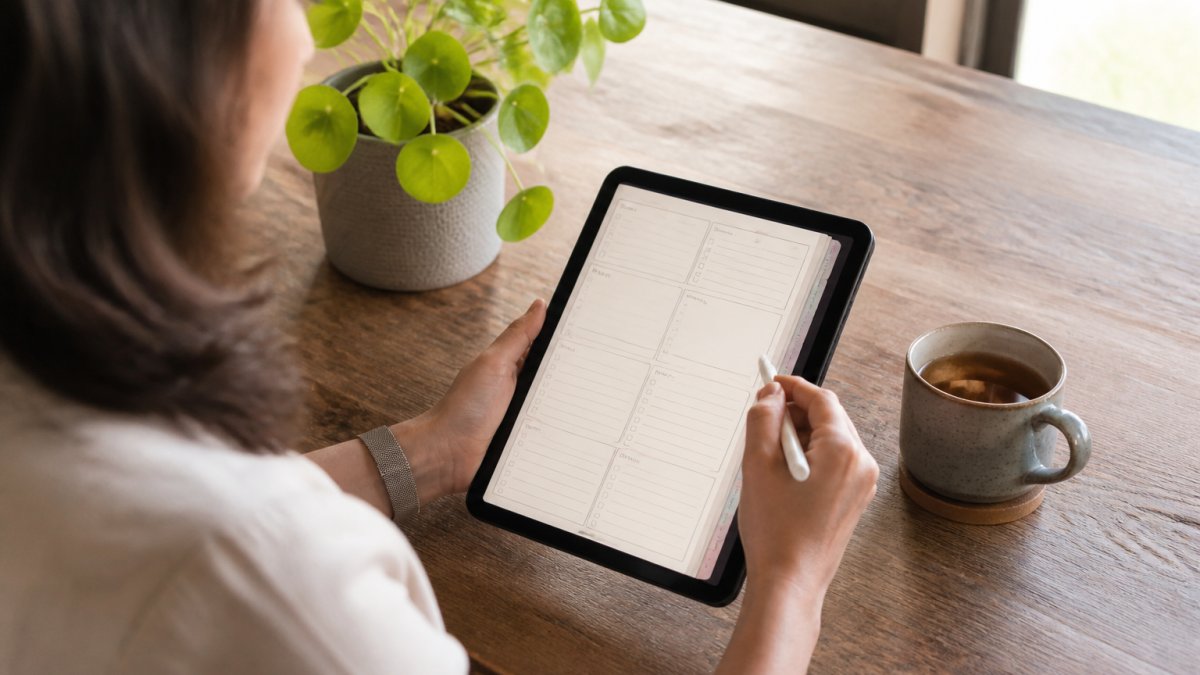
Start with one week and one page. Open your planner, write the next seven days, and close it. That's the whole first session. A daily planner page with an hourly schedule and a short to-do list is enough to test whether handwriting on glass feels right.
Then add one layer at a time:
- Week one: daily pages only. No monthly spreads, no habit trackers.
- Week two: add a weekly planner view so you can see the shape of the week.
- Week three: add task management, either inside the planner or in a linked app.
- Week four: add one reflection or habit page, and only if you'll actually fill it in.
A common mistake is buying the most elaborate planner because it looks impressive in screenshots. The planners people keep using are the ones with the fewest pages they feel obliged to ignore.
Watch out: if you set up calendar sync, time blocking, and a full task system in the first sitting, you'll spend your planning time maintaining the system instead of planning.
Choosing a Yaayplanners Alternative That Matches How You Plan
Match the tool to your planning style, not to a feature list. Four questions settle most of it.
Do you think in handwriting or in typed lists? Handwriting points to a PDF planner in a note-taking app.
Do you need reminders and calendar sync? If yes, a PDF planner alone won't do it.
How much setup do you want? Notion and similar tools reward tinkering. A designed PDF planner rewards you for just opening it.
Here's where BriarpatchPaper fits. BriarpatchPaper offers hyperlinked digital planners for GoodNotes with botanical, nature-inspired designs and instant downloads, along with digital journals and reflection tools.
For anyone weighing whether to keep a paper planner alongside it, our breakdown of paper planner pros and cons is the honest version.
Browse Botanical Digital Planners at BriarpatchPaper
The hard part isn't finding another planner. It's finding one that survives contact with a real week.
If you've downloaded three planners and abandoned all three, the fix is usually a smaller, calmer starting point: one hyperlinked PDF planner, one note-taking app, one week of pages. BriarpatchPaper offers botanical, nature-inspired digital planners and journals as instant downloads, editable Canva templates for invitations, and printable wall art. Browse the collection on the BriarpatchPaper website and start with a single week.
Frequently Asked Questions
What are the best digital planning alternatives to Yaayplanners?
The right alternative depends on whether you want a file or an app. Hyperlinked PDF planners work inside note-taking apps like GoodNotes, Notability, CollaNote, or Zinnia, and give you fixed layouts with tap-to-navigate tabs. Dedicated apps such as Artful Agenda run on a subscription. Flexible tools like Notion, TickTick, and Todoist offer free tiers for task-focused planning. Shops like BriarpatchPaper sell hyperlinked PDF planners with botanical designs for GoodNotes users.
Are hyperlinked digital planners better than planning apps?
Neither wins outright. A hyperlinked PDF planner behaves like a paper planner you write in by hand, with tabs that jump between daily, weekly, and monthly pages. That suits people who think better with a stylus and want one fixed layout. Planning apps add reminders, syncing, and task automation, which helps if you plan across a phone and a tablet. Many people run both: a PDF planner for daily pages and a task app for reminders.
How do I choose the right digital planner template for my needs?
Start with three questions. What device will you use, since PDF planners need a note-taking app that supports handwriting? Do you want daily pages, weekly spreads, or only habit and garden tracking? And do you want to edit the layout yourself? Templates built in Canva can be customized before you export them, which helps if you want a planner that matches your own categories rather than a fixed set.
Can I use Canva templates for digital planning?
Yes. Canva templates let you change colors, fonts, headings, and page order in a browser, then export the finished file as a PDF. That PDF can then be opened in a note-taking app and written on with a stylus. The main limit is that Canva edits happen before you start writing, so decide your sections and layout first, then export once the structure is settled.
What features should I look for in a digital planner?
Check four things: hyperlinked navigation so you can jump between sections, compatibility with your note-taking app, a page layout that matches how you plan, and whether the file is editable before export. For work and school planning, look for hourly schedules and time blocking. For personal or garden tracking, look for habit and reflection pages. Pricing varies by shop, so check the listing for what is included before buying.
Ready to try a planner you'll actually open? Get started with BriarpatchPaper and download a botanical hyperlinked planner built for GoodNotes today.