 how-to
Are Canva Templates Easy to Edit? A Beginner's Walkthrough
Last Updated: October 28, 2026
Quick Summary
Canva templates are easy to edit, and most people can change the text in under a minute using a simple click-and-type model that needs no design software or tutorial. Editing is easy, but making the result look good takes a little more care.
- Do your first full edit on a laptop or desktop, where precision edits are much easier.
- Use mobile for quick text edits and last-minute changes, not full layout work.
- Pick two fonts, one for headings and one for body text, and stop there.
- Change the font size instead of dragging text box corners so text does not stretch.
- Scan the design for premium elements before downloading, since Canva may not warn you until export.
Table of Contents
- The Short Answer on Whether Canva Templates Are Easy to Edit
- How to Edit Canva Templates: A Step-by-Step Walkthrough
- Editable Canva Birthday Invitations for Kids: What You Can Change
- How to Edit a Canva Template on Mobile
- Canva Template Editing Tips for a Cleaner, More Consistent Design
- Free vs Paid Templates and the Limits Worth Knowing
- Common Editing Problems and How to Fix Them
- Choosing a BriarpatchPaper Template You Can Edit With Confidence
- Frequently Asked Questions
The Short Answer on Whether Canva Templates Are Easy to Edit
Yes, Canva templates are easy to edit. Most people can open a template and change the text in under a minute, thanks to a simple click-and-type model that needs no design software or tutorial. At BriarpatchPaper, our shop features editable Canva templates for invitations, as well as hyperlinked digital planners.
The honest version is more useful than a flat yes. Editing a template is easy. Making the result look good takes a little more care.
That gap is where most beginners get stuck: they swap a name and a date without trouble, then hit a layout that shifts, a font that will not match, or a photo that refuses to fit the frame. None of those problems is hard to fix once you know the cause.
Below, we walk through opening a template, finding editable elements, changing text and colors, and fixing common problems, plus keeping a design clean from first click to final download.
One thing worth saying early: a template gives you a head start on layout and color. It does not do the thinking about what your invitation should say or how the information should flow. A Canva review from Prezent.ai makes this point directly, noting that templates make slide design easier but do not guide users on how to structure a presentation. The same holds for invitations. You still decide the words.
How to Edit Canva Templates: A Step-by-Step Walkthrough
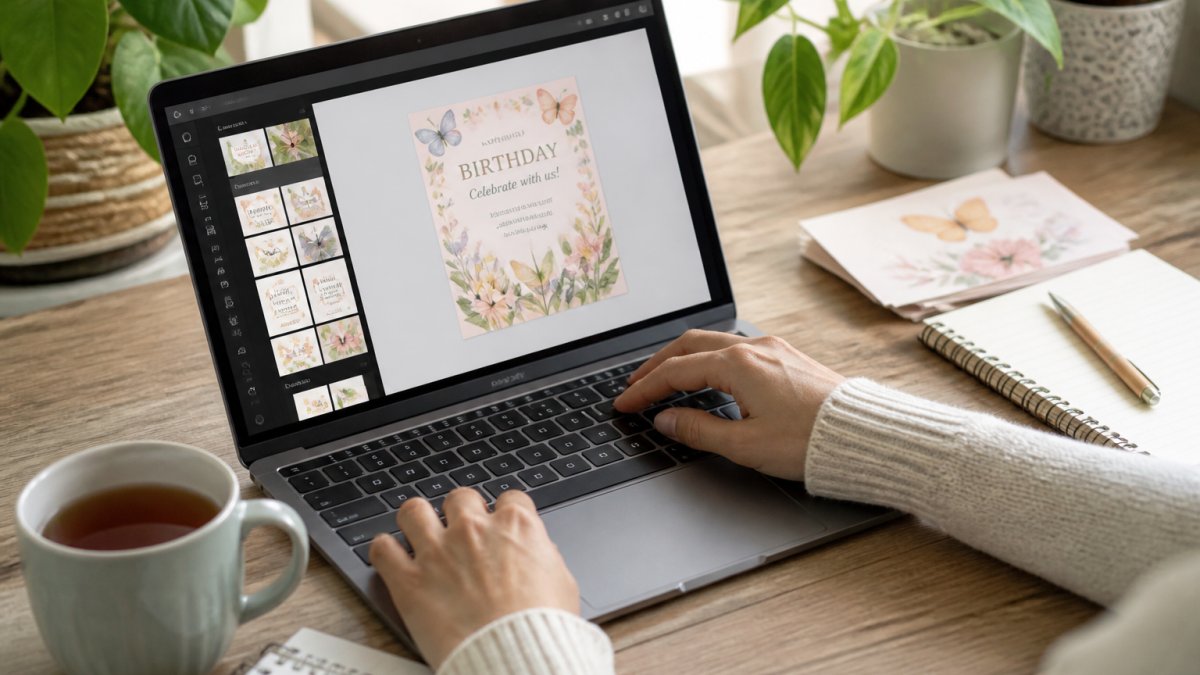
Follow this walkthrough once and the process becomes routine.
Opening a Template and Finding the Editable Elements
Open the template in Canva. The design loads into the editor.
Changing Text, Colors, Fonts and Photos
To swap a photo, click the image and choose Replace. Upload your own file or pick from Canva's library. Use Crop to refit the new photo into the same frame so the layout does not shift.
Adding, Removing and Rearranging Pages and Elements
For a deeper, invitation-specific walkthrough, our guide on how to customize Canva party invitations takes the same steps and applies them to party designs.
Editable Canva Birthday Invitations for Kids: What You Can Change
BriarpatchPaper offers editable Canva templates for invitations.
If you want the fuller picture of what is editable in kids' invites, our guide to customizable birthday invitations for kids covers the options in more detail.
How to Edit a Canva Template on Mobile
You can edit a Canva template on your phone, and for small text swaps it works well. The mobile app has the same core tools as the desktop editor, but the smaller-screen interface changes which edits feel easy and which feel fiddly.
Editing on the Canva Mobile App (iOS and Android)
Where mobile gets awkward is precision: nudging an element a few pixels is fiddly with a finger, aligning by eye is harder than on desktop, and multi-page designs mean a lot of pinching and zooming. Font menus and color pickers also take more taps because the toolbar is compressed.
Editing on Desktop (Browser)
The desktop editor gives you the full toolbar, a side panel for pages and elements, and a larger canvas. Precision edits, nudging an element, matching spacing, comparing font weights, are much easier here, so do your first full edit on a laptop or desktop if you can.
Choosing Your Workflow
Our advice: use mobile for quick text edits and last-minute changes, and do the first full edit on a laptop or desktop. If you only have a phone, the app is still capable, just expect to zoom in more and double-check alignment at 100% before downloading.
Canva Template Editing Tips for a Cleaner, More Consistent Design
Consistency is what separates a template that looks designed from one that looks edited. A few habits get you there.
- Pick two fonts and stop. One for headings, one for body text. That is enough.
- Use the template's color palette. Add one accent color at most.
- Keep spacing even. Turn on the guide lines and match the gaps between elements.
- Do not resize text boxes by dragging corners. Change the font size instead, so the text does not stretch.
- Replace, do not stack. Swap an image rather than layering a new one on top of the old.
- Check the whole page at 100% zoom. Small misalignments hide when you are zoomed in.
A common mistake is treating every element as fair game. Templates are balanced on purpose. Changing one font or one color usually works. Changing five at once rarely does.
Free vs Paid Templates and the Limits Worth Knowing
| Feature | Free Plan | Paid Plan |
|---|---|---|
| Template access | Large free library | Full library including premium |
| Premium elements | Watermarked or locked | Full use |
| Background remover | Not included | Included |
| Brand kits | Limited | Full brand colors and fonts |
| Export formats | Standard formats | Adds premium export options |
Common Editing Problems and How to Fix Them
Watch out: downloading before checking for premium elements wastes the most time. Canva will not always warn you until the export step, so scan the design first.
Choosing a BriarpatchPaper Template You Can Edit With Confidence
BriarpatchPaper offers editable Canva templates for invitations, hyperlinked digital planners, and printable wall art as instant digital downloads. The collection includes botanical and nature-inspired designs.
BriarpatchPaper offers editable Canva templates for invitations as instant digital downloads, with botanical and nature-inspired designs. Browse the shop to explore the collection.
Frequently Asked Questions
Are Canva templates easy for beginners to customize?
BriarpatchPaper offers editable Canva templates for invitations. The shop also offers printable wall art.
Do you need Canva Pro to edit templates?
No. You can edit a template on the free Canva plan. The difference shows up in the assets: some templates and photos are marked Pro and require a paid plan to use or export without a watermark. If a template you bought from a shop like BriarpatchPaper uses only free elements, the free plan is enough. Check the template's description before buying, and swap any Pro-marked photo for an uploaded one if you stay on the free tier.
Can you edit a Canva template on your phone?
Yes, through the Canva mobile app on iOS and Android. Tap an element to select it, then use the toolbar to change text, swap photos or move items. The mobile editor works best for quick changes like updating a date or a name. For a full multi-page planner or a detailed invitation, a desktop gives you more room and finer control over alignment and spacing.
Can you download and print an edited Canva invitation?
Yes. Once your edits are done, use Share then Download and choose PDF Print for a print-ready file, or PNG for sharing digitally. For home printing, select the paper size that matches your design and check that photos are high resolution so they do not look pixelated. Print a single test copy first to confirm colors and margins before running the full batch.