 how-to
How to Use Hyperlinked Digital Planners on Your Tablet
Last Updated: October 26, 2026
Quick Summary
Hyperlinked digital planners are PDF files with clickable tabs and page links that jump you straight to any month, week, or section. Import the PDF into a link-supporting app like GoodNotes as a new document, then tap the cover menu or tabs to navigate. Keep the original download as your master copy, because re-saving or compressing the file strips the links.
- Import the planner as a new document rather than dragging pages in one at a time.
- Never print-to-PDF or re-save the file before importing, as both can strip hyperlinks.
- Start with one weekly page and add only appointments, one priority, and one note.
- Use the cover menu to jump between sections and corner links to move within one.
- Links break when the file changes, so edit a duplicate and keep the master intact.
Table of Contents
- What Makes a Hyperlinked Digital Planner Different
- How to Use a Digital Planner Without Overcomplicating It
- Choosing a Hyperlinked Digital Planner for Goodnotes
- How to Import a Digital Planner into Goodnotes
- Tapping Through Tabs, Pages, and Planner Covers
- Why Your Hyperlinks Stopped Working and How to Fix Them
- Making Your Planner Easier to Navigate Every Day
- Pick a Planner and Start With One Page Today
- Frequently Asked Questions
What Makes a Hyperlinked Digital Planner Different
Hyperlinked digital planners are PDF files with clickable links built into their pages. Tap a tab and you jump straight to that month, week, or section.
That single feature changes how planning feels. Paper planners force you to flip. Most PDF planners force you to scroll.
The links only work if your app supports them and you import the file correctly. Get those two things right and the rest is simple.
Links, Tabs, and How Navigation Actually Works
Think of the planner as a set of rooms with doors between them. Each hyperlink is a door.
- Planner tabs run along the top or side of a page and link to each month or section
- Page links sit at the bottom of a page and move you forward or back
- Planner covers usually hold a clickable menu that jumps to any part of the planner
- Internal links point to another page in the same PDF file
Tap a tab, and your app opens the linked page. Nothing syncs, nothing loads. The link lives inside the file, which is why a hyperlinked planner works offline. It also explains the most common failure: if the file gets flattened or converted, the links vanish.
How to Use a Digital Planner Without Overcomplicating It
Most people who abandon a digital planner do not quit because the tool is bad. They quit because they tried to use every page in week one.
A digital planner is a PDF-based planning system you write on with a stylus or your finger inside an annotation app. The links handle movement. You handle the content.
Start smaller than feels natural:
- Pick one section. A weekly page is plenty.
- Add three things only: appointments, one priority, one note.
- Close the planner and come back tomorrow.
No habit tracker, no mood log, no color coding.
A Simple First-Week Routine
- Day 1: Import the planner and tap through every tab once
- Day 2: Fill in this week's page only
- Day 3: Add one note to the daily page
- Day 4: Try the monthly page, add two events
- Day 5: Test one backward link
- Day 6: Add a digital sticker or a handwritten mark
- Day 7: Decide what to keep and what to ignore
By day seven you will know which pages earn their place. Delete or skip the rest. A planner you half use beats one you admire and never open.
Choosing a Hyperlinked Digital Planner for Goodnotes
Before you download anything, check four things. They take two minutes and save a lot of frustration.
Check the link structure. Open the preview and tap a tab. Does it jump cleanly?
Check the page count and layout. A 12-month planner with weekly and daily pages runs long.
Check what you can edit. Some planners let you customize covers and add pages. Others are fixed.
If you are still weighing the switch, our guide to digital planner vs paper planner pros lays out the trade-offs side by side. And if you want a deeper walkthrough of comparing templates, this guide to choosing digital planner templates covers layout, page count, and link structure in more detail.
Our own planners are built for GoodNotes with botanical, nature-inspired designs and instant download.
How to Import a Digital Planner into Goodnotes
Importing takes under a minute, but the exact taps differ by app. The steps below cover GoodNotes first, then note what changes in other popular PDF annotation apps.
GoodNotes (iPad, iPhone, Mac)
- Download the PDF to your tablet. Save it to the Files app, not to a random folder or a cloud-sync folder that compresses files.
- Open GoodNotes and tap the plus icon on the library screen.
- Choose Import, then find the PDF in Files.
- Tap the file. GoodNotes creates a new notebook from it.
- Open the notebook and tap a tab to test the links.
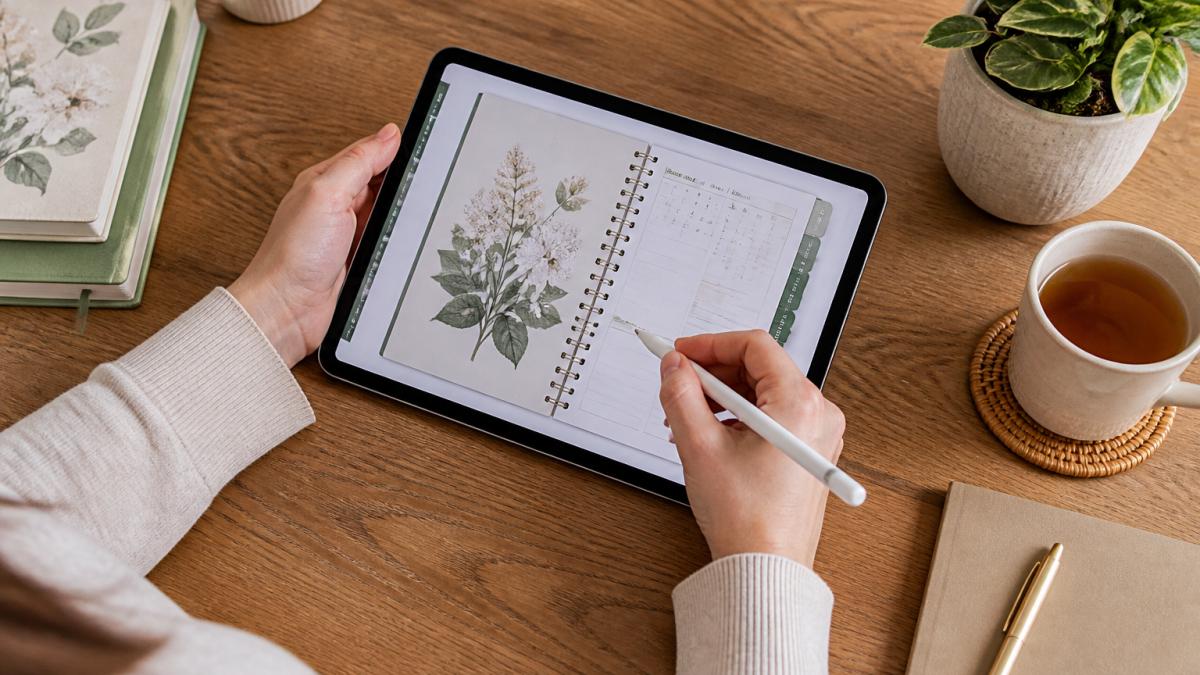
Two details matter here. First, import the file as a new document rather than dragging pages in one at a time. Second, do not print-to-PDF or re-save the file in another app before importing. Both can strip the hyperlinks.
Notability
Notability imports PDFs through the same plus icon, but treats the file as a note rather than a notebook. Hyperlinks still work in edit mode; if taps do nothing, check that you are not in read-only or presentation view. Choose "new note" rather than appending so the planner's internal links stay intact.
Noteshelf
Noteshelf imports PDFs from the shelf screen. It sometimes opens PDFs in a fit-to-width view that makes edge tabs small; pinch to zoom slightly if taps feel unreliable. It also has a separate "read-only" mode that disables links, so confirm you are in editing mode.
Xodo and PDF Expert
Xodo and PDF Expert are general PDF readers rather than handwriting-first apps, but they handle internal links well. In Xodo, make sure you are not in the "annotate" tool with a drawing tool selected, because some drawing modes intercept taps. In PDF Expert, links work in normal viewing mode; exit any form-filling or annotation mode before tapping tabs.
What changes across devices
On a phone, edge tabs are physically small. Most apps let you zoom, but a better fix is to use the planner's cover menu or a table-of-contents page with larger tap targets. On a Mac or Windows tablet, the same PDF works, but a trackpad or mouse may require a precise click rather than a tap. If a link does not respond, try a slightly longer press or zoom in one step.
Compatibility checklist before you import
- Does the planner's preview show working tabs in your app?
- Is the page size (A4, Letter, or a tablet-native size) a good fit for your screen?
- Does the app support internal PDF links in its normal editing mode?
- Will you be editing pages? If so, keep a master copy and edit a duplicate.
If you are still weighing the switch, our guide to digital planner vs paper planner pros lays out the trade-offs side by side. And if you want a deeper walkthrough of comparing templates, this guide to choosing digital planner templates covers layout, page count, and link structure in more detail.
Our own planners are built for GoodNotes with botanical, nature-inspired designs and instant download. No subscription, no app of our own to learn.
Tapping Through Tabs, Pages, and Planner Covers
Once the planner is open, navigation is mostly muscle memory.
Planner tabs sit on the edge of the page and jump to a month or section.
Page links at the bottom corners move you forward and back one page.
The planner cover often holds a full menu.
Planner pages are just PDF pages you write on with the pen tool.
Why Your Hyperlinks Stopped Working and How to Fix Them
Broken links are the number one complaint about hyperlinked digital planners. Almost every case traces back to one of five causes.
| Problem | Likely Cause | Fix |
|---|---|---|
| Tabs do nothing | App is in a read-only or presentation mode | Switch to edit or annotation mode |
| Links worked, now dead | File was re-saved or compressed | Re-download the original PDF |
| Only some tabs fail | Pages were deleted or reordered | Restore the original file |
| Links open the wrong page | Pages were inserted mid-document | Keep page order intact |
| Nothing taps at all | Wrong app or a converted file | Open in GoodNotes or a PDF app with link support |
The pattern is clear. Links break when the file changes. Treat the original download as your master copy, and make a duplicate before you start editing pages. If you delete pages, delete from the duplicate, not the master.
Making Your Planner Easier to Navigate Every Day
Most guides stop at "tap the tabs." The harder question is how to move through a hyperlinked planner in a repeatable way so you are not hunting for pages every morning. The workflow below is a short daily loop, a weekly review, and a monthly reset.
The daily loop (2-3 minutes)
- Open the planner and tap the cover menu or the current month tab.
- From the monthly page, tap the current week link.
- From the weekly page, tap today's daily page.
- Write three things: appointments, one priority, one note.
- Use the corner back-links to return to the weekly page, then close the planner.
Always enter through the same door. Starting on the cover menu every morning builds muscle memory for where the month, week, and day links sit, faster than scrolling or searching.
The weekly review (10 minutes)
Once a week, open the weekly page and do three things:
- Move any unfinished tasks to a specific day next week.
- Check the monthly page for events you have not yet broken into daily tasks.
- Tap through to next week's page once so you know it is there and linked correctly.
This is also the moment to test a backward link. Tap the back-to-month link from the weekly page. If it works, your navigation is intact.
The monthly reset (15 minutes)
At the start of each month, open the monthly page and:
- Add fixed dates (appointments, birthdays, bills).
- Tap into each weekly page once to confirm the links are live.
- Decide which optional pages (habit tracker, mood log, notes) you will actually use this month. Skip the rest.
The monthly reset is where you prune the pages that are not earning their place.
Navigation habits that save time
- Use the cover menu to jump, corner links to move within a section. That combination covers almost everything.
- Color code by area. One color for garden tasks, one for habits, one for appointments.
- Add digital stickers to mark recurring tasks instead of rewriting them.
- Keep a short list of go-to pages on the cover or first page.
- Copy pages for extra notes rather than squeezing text into margins.
Accessibility and alternative navigation
If small tabs are hard to tap, you are not alone. A few adjustments help:
- Increase your app's zoom level slightly; some apps need a more precise tap on small targets.
- Use the cover menu or a table-of-contents page with larger tap targets instead of edge tabs.
- On a phone, prefer the menu over edge tabs.
- If you use a screen reader, check that the planner's links are tagged in the PDF; not all planners support this, so test before you buy.
A planner should fit your hands, not the other way around. Fewer pages, used well.
Pick a Planner and Start With One Page Today
The gap between owning a hyperlinked planner and actually using one is a single page. Not a system. Not a setup ritual. One page, today.
Our planners at BriarpatchPaper come as instant digital downloads and use botanical, nature-inspired designs.
If you have tried digital planners before and watched them sit unused, start differently this time. Import the file, tap one tab, and write one line.
Frequently Asked Questions
Why are the hyperlinks in my digital planner not working?
Check whether the app supports internal PDF links and whether the file was imported correctly.
Can I write on a hyperlinked digital planner?
The business offers hyperlinked digital planners for GoodNotes.
How do I navigate tabs and links in a digital planner app?
Tap a tab or clickable link to jump to that section.
Do I need a paid app to use a hyperlinked digital planner?
Check whether the app supports internal PDF links before importing.